Skip to content
vaiya.Contact
All projects

Blend It Like
a Max.

Your shortcuts. Your tools.
Still your workflow.

Explore the tools
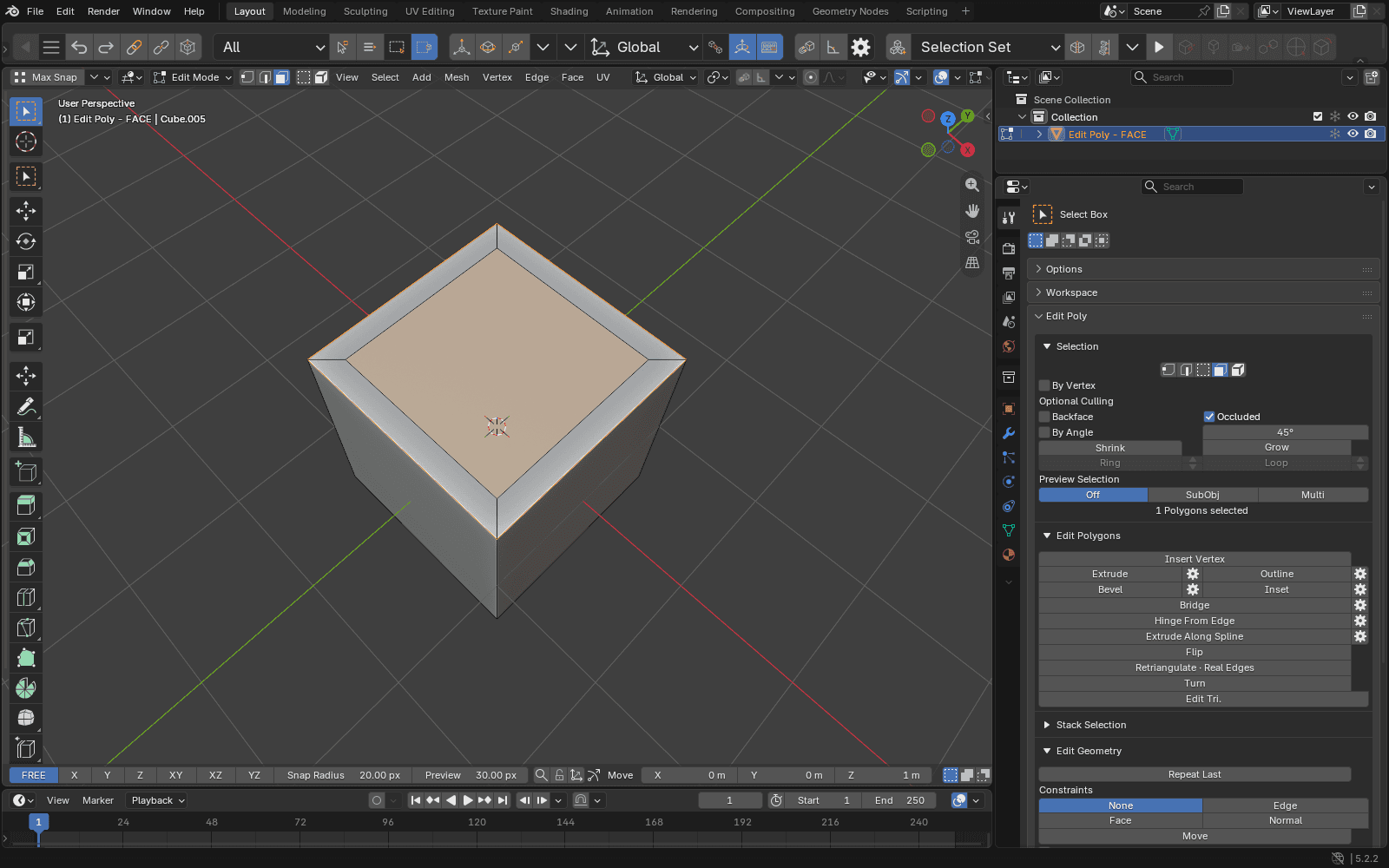
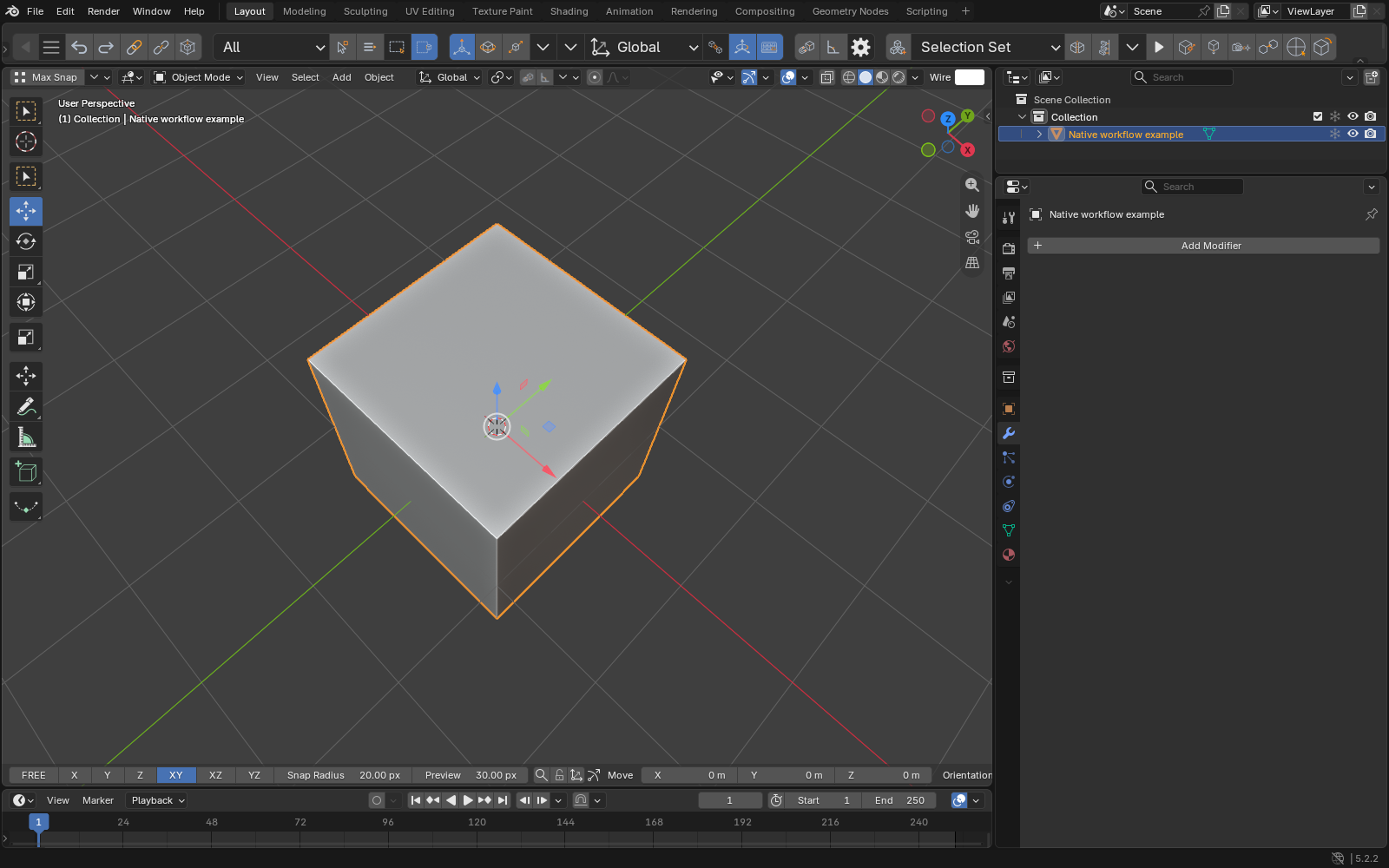
Polygon level after a 0.20 m inset of the selected cube face.Max toolbar, selection filters, native navigation and XYZ bar

Making Blender worse, one 3ds Max feature at a time.

This project brings familiar 3ds Max tools, shortcuts and workflows into Blender to make the switch as painless as possible. Because switching software is hard enough without having to explain to your hands that twenty years of muscle memory are now considered a bug.

Import .max without starting 3ds Max.

Direct MAX reads supported models and V-Ray materials directly in Blender. You can edit the resulting meshes and shader nodes. A compatible version of V-Ray for Blender is required.

Choose File → Import → 3ds Max V-Ray (.max) and set the backend to Direct MAX. Add a collection, open a new scene, or save a .blend for each file.

Read the Direct MAX guide
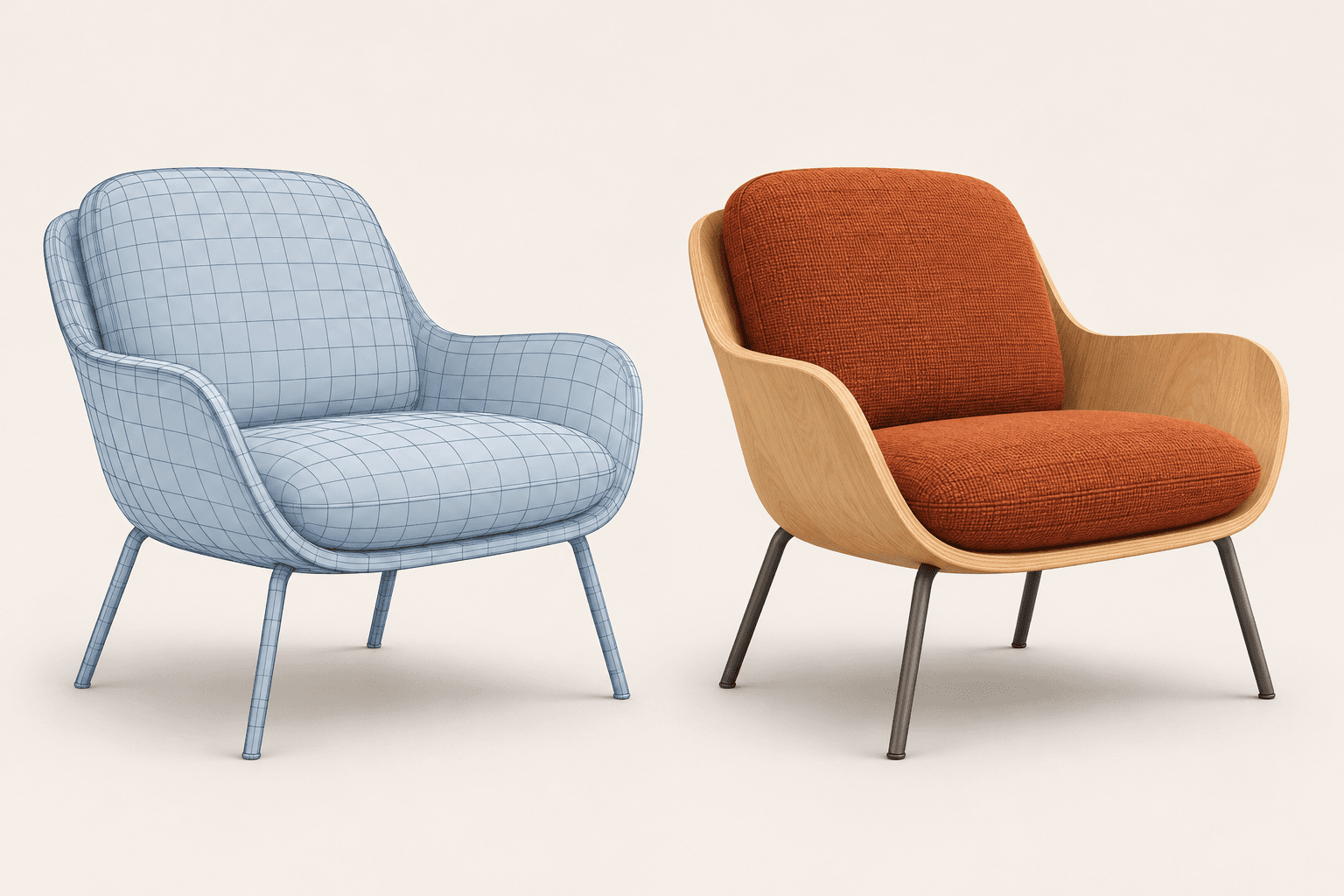
Illustration of a lounge chair in wireframe and with oak, orange fabric and metal materials

Direct MAX is in development. Supported imports can retain topology, transforms, UVs, texture connections and some TurboSmooth stacks. If an import reports losses, approve them for that file before saving. Documented imports ran without starting 3ds Max. Testing on a machine with no 3ds Max installed is still open.

Before you start.

Windows x64.
Blender 5.2.2 LTS.

Use build d13f752e3b9c for the complete suite. The native Outliner tools check this exact build when they start.

Install the suite ZIP

Build suite 1.2.68 with python scripts/package_suite.py. In Preferences, use Install from Disk, enable Blend It Like a Max, choose your modules and save preferences.

Installation guide , opens in a new tab

Integrations are optional

Direct MAX and the V-Ray material tools use V-Ray for Blender. The Native via 3ds Max backend also needs licensed 3ds Max with V-Ray. Live Link needs Chaos Vantage.

Familiar moves. Native tools.

Edit meshes and curves from Blender's Properties editor, snap objects into place, and adjust their mapping in the modifier stack. Your geometry stays in Blender throughout.

Edit Poly & Edit Spline

Edit vertices, edges, polygons or whole elements in Edit Poly. Use Hole mode to select opening boundaries. In Edit Spline, divide curve segments or round suitable corners from Blender's Properties editor.

Edit Poly guide , opens in a new tab
Place objects vertex to vertex.

Drag a source vertex onto a target vertex to position the selection. Constrain the move to an axis or plane when one coordinate needs to stay put.

Vertex Snap guide , opens in a new tab

Adjust mapping in the stack.

Add UVW Map to a mesh, choose a projection and move its mapping gizmo. Resize or rotate the mapping while leaving the mesh in place. Node Layout helps untangle the connected shader nodes when you work on the material.

UVW Map guide , opens in a new tab

Pick the tools
you need.

Each of the 27 modules has its own switch in Preferences. Browse the tools below to see what they do, where to find them and how to use them.

Native Workflow

Version 0.1.43

Use familiar shortcuts, a context quad menu and a separate material window that remembers its layout.

Where to find it. Enable Native Workflow in the suite preferences; use the 3D Viewport and material editor.

Read the Native Workflow guide , opens in a new tab

Try it in Blender

  1. Use the BILAM Standardlayout workspace for two viewports with the Outliner on the left. Right-click in a supported viewport context to open the quad menu.
  2. Press M to reopen the material window. If Material Drop is enabled, drag an asset into the Shader Editor and release when the COPY cursor appears.
  3. Choose Save to Material Library in the node editor to keep the displayed shader and its supported textures as a reusable asset.

V-Ray material editing needs V-Ray for Blender. Escape or right-click cancels supported operations; Ctrl+Z undoes them.

Open full resolution , opens in a new tab
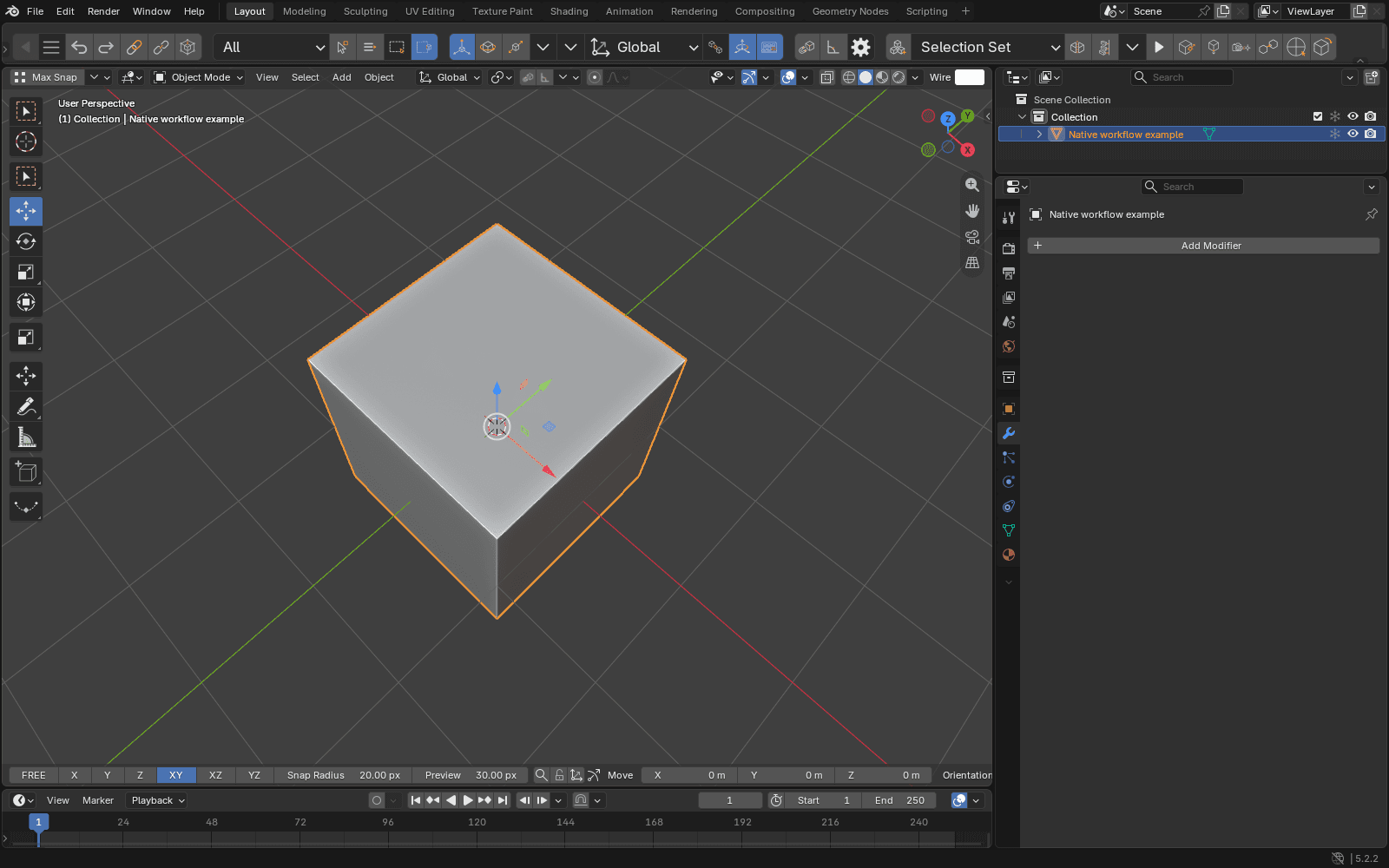
Max toolbar, selection filters, native navigation and XYZ bar

Make yourself
at home in Blender.

Found a bug? Let us know at blenditlikeamax@vaiya.de.

Blender, Autodesk and Chaos retain their respective trademarks. No official affiliation or endorsement is implied.